
While deep dialogue is the heart of Curious Souls Cafe, sometimes the room needs a shift in energy. We use Action Prompts to break the routine of sitting and talking, introducing kindness, and play to help participants bond faster than conversation alone allows.
Quick Navigation
- Why Action Prompts?
- 1. How to Play (The Game Loop)
- 2. Filters & Randomizing
- 3. Saving & Notes
- 4. Search & Navigation
- 5. Focus Mode & Tools
- 6. Pro Features
Why Action Prompts?
Sometimes, talking isn't enough. Action Prompts are designed to shift the group's energy from "thinking" to "doing" and "feeling."
-
Shift the Energy: Breaks the routine of "Question & Answer" by introducing creativity, or direct interaction.
-
Practice Kindness: Many prompts focus on gratitude (e.g., "Compliment the person to your left"), creating immediate warmth in the room.
-
Build Connection: Structured "dares" allow for safe vulnerability, helping strangers become friends faster than talk alone.
1. How to Play (The Game Loop)
Action Prompts are designed as a game to get groups interacting. It can be used alongside the dice as meaningful challenges (see the Dice Roller app page for how). When used individually, just follow the 3 steps shown in the app's welcome banner:
⚡ Try It Now: Generate a Random Prompt
Get a taste of the meaningful actions you'll find in the app.
"Tap the button below to reveal a meaningful action..."
Where does this fit? 🧩 Action Prompts are highly versatile! Use them for Icebreakers (Round One), or as a Mid-Session Vibe Shift to rescue a room when the intellectual chemistry stalls and the energy falls flat. To see the full two-hour run-of-show, check out our Event Structure Guide.
2. Filters & Randomizing
The Action Prompts tool is designed to be flexible for any group vibe.
Step 1: Choose a Theme
At the very top, you can filter actions by their intent. Tap a category to focus your session:
- Reflect: Introspective questions for self-discovery.
- Impact: Prompts focused on gratitude and recognition.
- Connect: Actions that build bridges between people.
- Explore: Prompts to imagine future possibilities.
- Create: Creative writing or brainstorming tasks.
- Play: Fun, lighthearted tasks to raise energy.
Step 2: Set Intensity
Use the difficulty slider to select your desired intensity range:
- Lite 🌱: Easy, low-stakes actions. Great for warm-ups or new groups.
- Medium: Standard actions that require a bit more thought but are still accessible.
- Deep 🌀: Introspective challenges that foster vulnerability and strong bonding.
The Randomizer & "Help Me Pick"
Hit the "Next Random Actions!" button to generate a list based on your filters.
Sequential Mode & Progress Saving
If you prefer to move through the prompts systematically instead of randomly, simply toggle the switch to Sequential mode.
- Infinite Carousel: The list loops seamlessly. If you hit "Next" on the final prompt, it brings you right back to the top.
- Smart Anchors: Your exact position in the list is automatically saved. If you close the app or filter out "Lite" prompts, the app remembers exactly where you left off.
Found an action you want to keep or complete later?
Star to Save
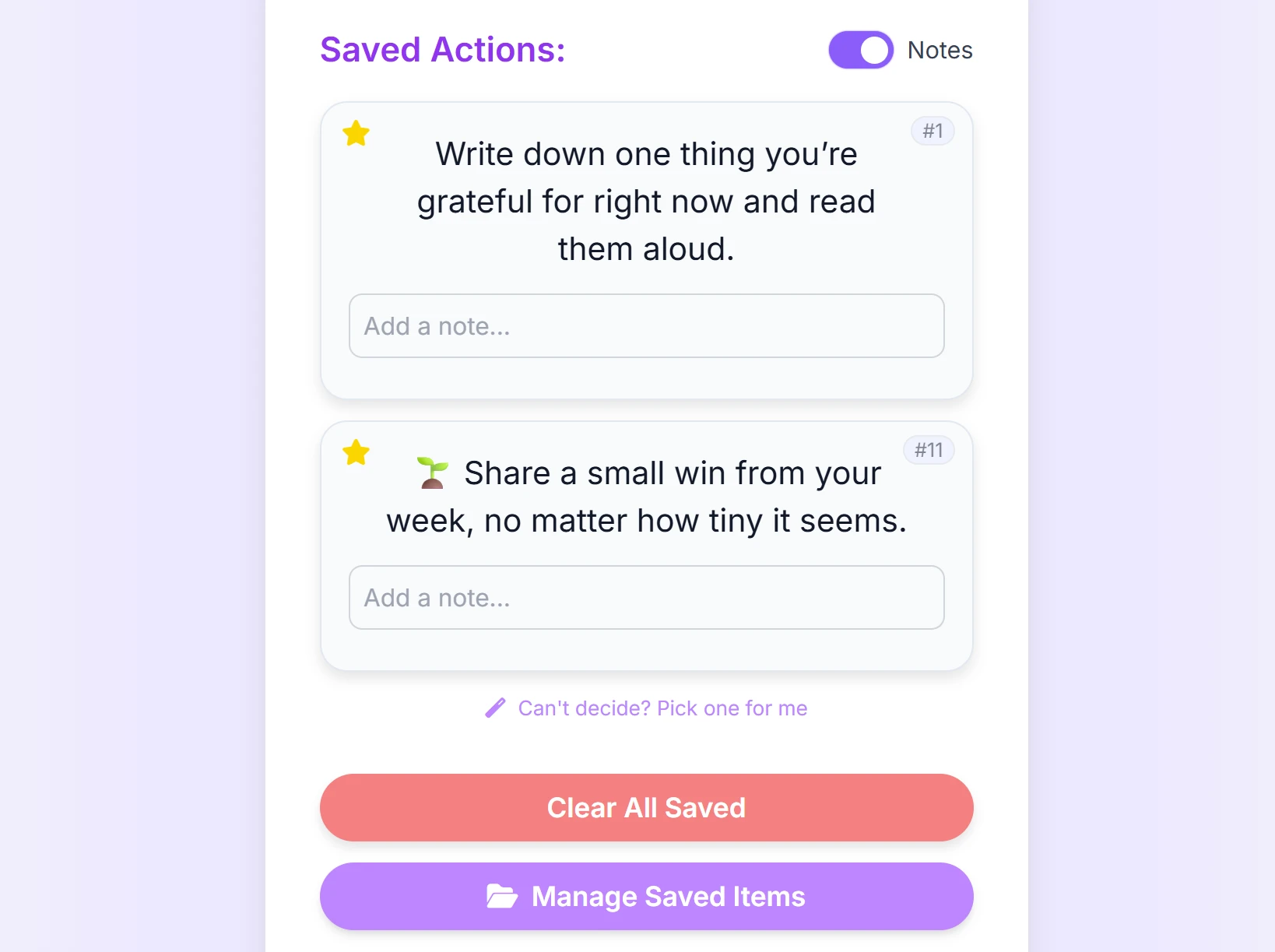
Tap the Star icon on any action card (top-left corner). This moves it to your Saved Actions list at the bottom of the page.
Adding Personal Notes
In the Saved Actions section, you can toggle "Notes" on. This is a feature for authenticated Power Users and Facilitators. (How do I get the community passcode?) This reveals a text box under each saved action where you can:
- Jot down your reflection after completing the action.
- Draft your answer before sharing with the group.
- Use Reflection Frameworks (like Rose, Bud, Thorn or the S.T.A.R. Method) to instantly inject structured templates into your note!
4. Search & Navigation
Looking for something specific? The app offers two powerful ways to find content.
- Keyword Search: Type a word (e.g., "gratitude") to find all related actions.
- Go to Number: If a facilitator says "Let's do Action #42," simply type "42" in the "Go to action number" box to jump straight to it.
5. Focus Mode & Tools
When presenting an action to a group, visibility is key.
Focus Mode
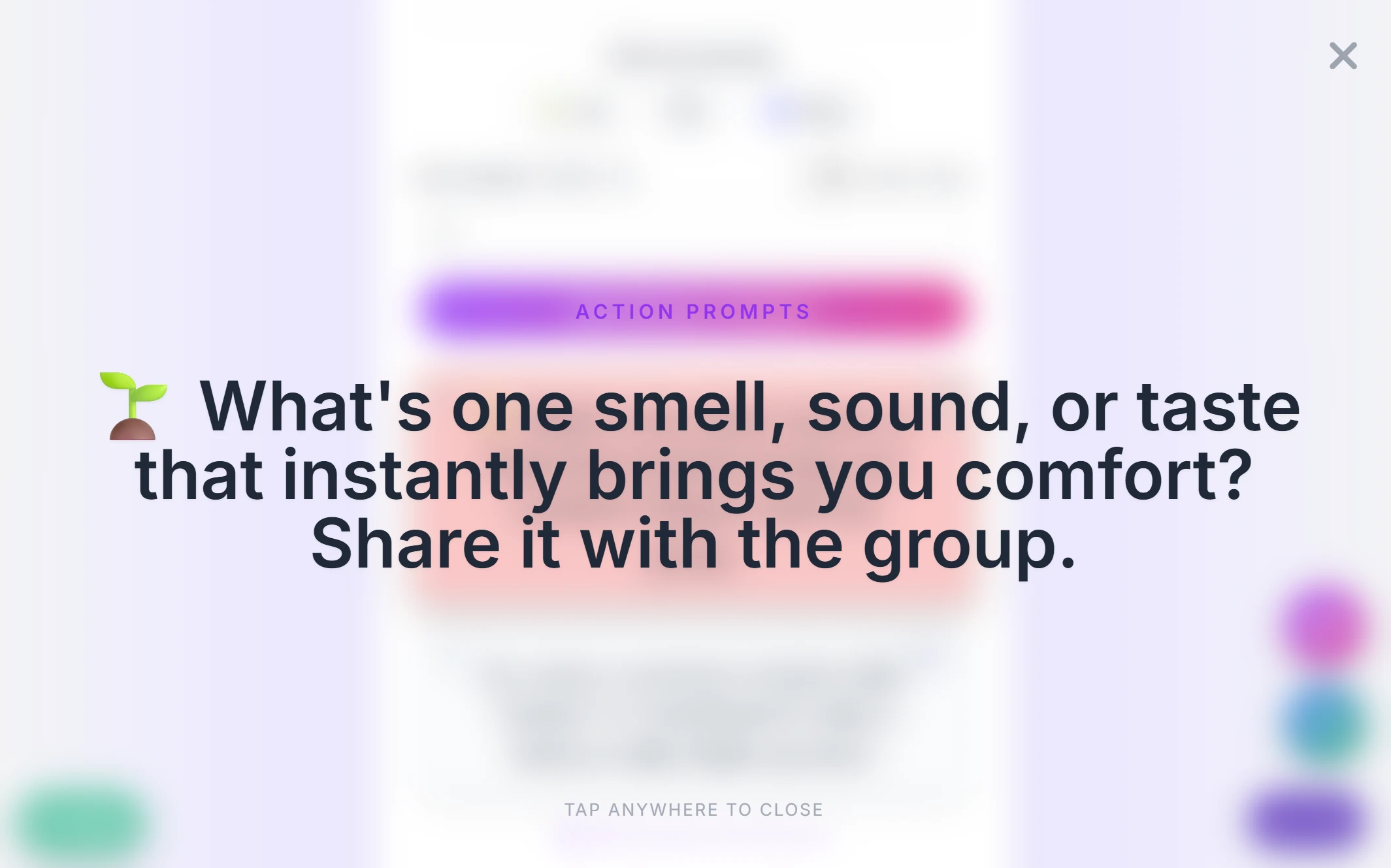
Tap the Expand icon (top-right of any selected card) to enter Focus Mode. This displays the text in large, high-contrast type, perfect for showing on a shared screen or passing your phone around.
Live Board Integration
The Action Prompts tool is seamlessly integrated with our ecosystem. If you are participating in a live facilitated gathering using our Live Board, this app will automatically stay synced with the event behind the scenes:
- Live Connection Indicator: A purple banner will appear at the top of your screen showing the active room name and current topic.
- Host Broadcasts: When a host broadcasts a new action or question, a "Focus Mode" overlay will automatically appear over your screen to ensure everyone stays on the same page. You can easily dismiss this overlay to return to the prompts.
- Seamless Disconnect: You can disconnect from the live broadcast at any time by tapping the "X" on the connection banner.
Floating Tools & Action Options
Use the floating buttons at the bottom-right for quick access to utilities:
- Dice: Opens the virtual dice roller to decide who speaks next.
- Bilingual Mode: Use the language dropdown at the top to instantly translate action prompts into Dutch, Korean, or Cantonese.
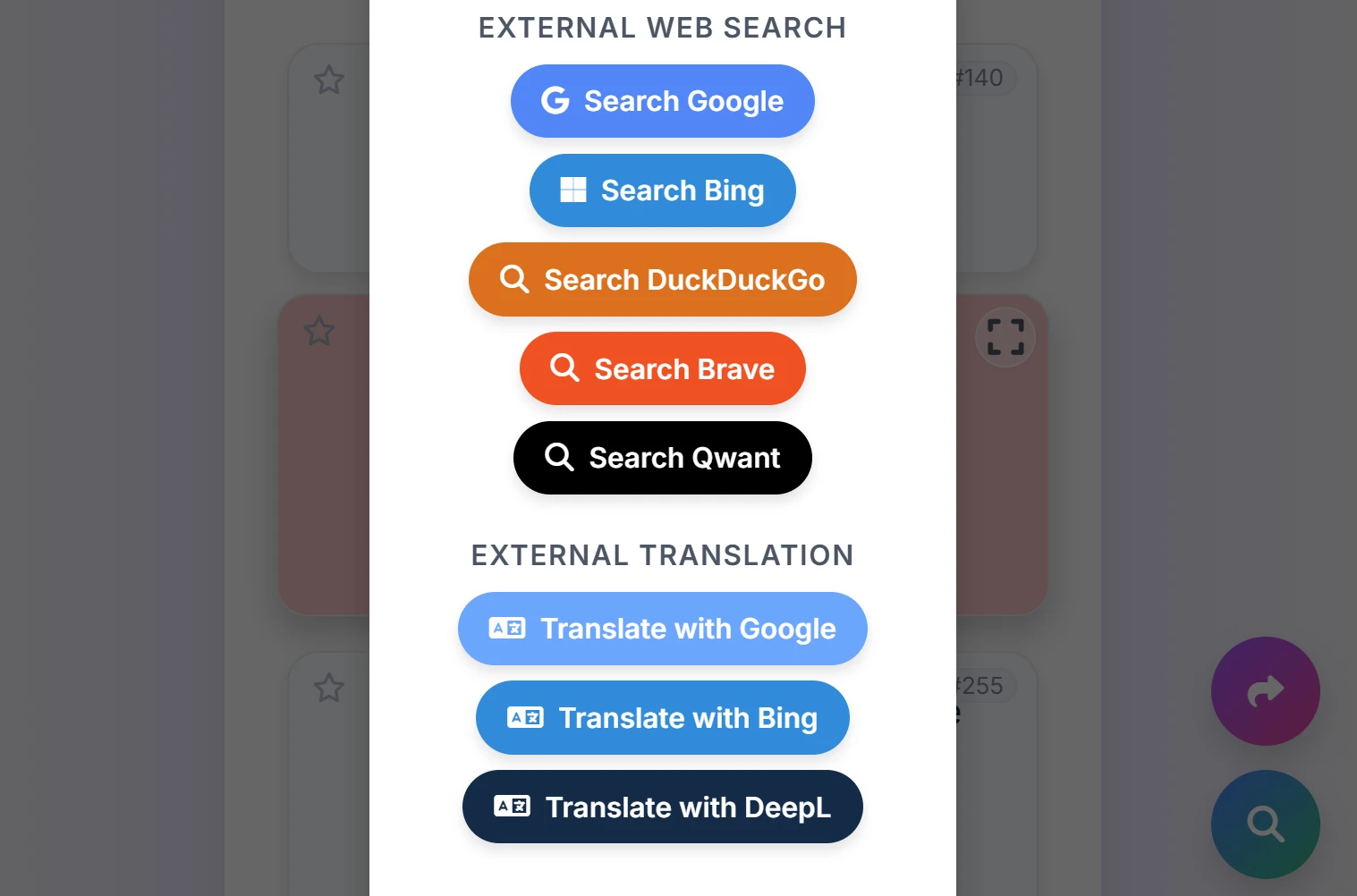
- Look Up: (Visible when text is selected) Instantly search the action text online (with an optional "Humanize AI" bypass) or translate it externally.
-
Copy & Share:
(Visible when text is selected) When you tap this, you get a menu
with powerful options:
- Create Graphic: Launches the Digital Souvenir engine. This instantly renders a beautiful, downloadable image card of the prompt that is perfectly sized for Instagram and social sharing.
- Copy Text: To clipboard.
- Share Link: Creates a direct link to this specific action (e.g., #42) to send to friends. By opening the Advanced Link Options, you can also force the receiver's screen to load specific filters!
- Paste in Session: Quickly jumps to the Live Board to submit this action. If you are already tethered to a live room, the app will instantly teleport you there and automatically open the submission modal for you!
"Write down one thing you’re grateful for right now and read it aloud."
 Curious Souls Cafe
6. Pro Features & Modes
Zero-Click Challenge Mode ⚡
Action Prompts are now beautifully integrated directly into the Dice Roller app to keep your group's momentum going.
- Instant Reveal: When you roll a striped face on the dice, an Action Prompt is instantly pulled from this deck and displayed right on the dice screen.
- Keep the Momentum: You no longer need to switch tabs or load a new page. The action is served immediately to keep the energy high.
- It encourages the group to complete one specific action together before returning to your main discussion.
Quick Join
See the Join button floating at the bottom? Tap this to quickly jump into a Live Session if your group decides to switch from Action Cards to the Live Board.
Ready to connect? Launch Action Prompts and start exploring meaningful challenges today.
Launch Action Prompts🛠️ Explore Other Tools
Enhance your gathering with our other facilitation tools.
Collect · Reflect
Your hub to curate questions, organize them with custom tags, and journal in Zen Mode, plus a professional Session Log for facilitators.
Curious Souls Cafe aims to foster a collaborative and reflective environment where dialogue and shared experience create meaning and build connections. The methods discussed here are flexible and can be adjusted to fit your group's needs.