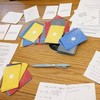

This tool serves two purposes. For the Facilitator or Power User, it is a command center to build agendas and log group dynamics in real-time, or journal deeply without distractions. For the Individual, it acts as a private space to save questions for later.
Quick Navigation
- 1. How it Works (Curating)
- 2. Interactive Demo
- 3. Features: Log
- 4. Features: Journal
- 5. Zen Mode & Deep Focus Tools
- 6. Utilities & Sharing
- 7. Live Board Integration
- 8. Privacy, Data & Backups
1. How it Works (Curating & Agendas)
Everything starts with finding the right question. As you explore our Conversation Decks, you will find prompts that resonate—either for yourself or for a group you are leading.
- Discover & Save: Tap the Star icon on any card across the site to save it to your local device.
- Build Your Agenda: Your collected questions (items on the "Saved" tab) essentially act as your run-of-show. Before the session, Star the specific questions you intend to ask so they are waiting for you in one place.
- Organize with Tags: Click the icon on any saved item to add custom tags (like `#team-meeting` or `#goals`). You can then use the dropdown filter at the top of the page to instantly view specific groups of questions.
- Present to the Room: During the session, use the Focus icon on any saved card to show the question full-screen to your audience.
- Concise Prompts: If a saved question has a built-in summary, a Concise / Expand button will appear when you tap the card, letting you toggle its complexity.
2. Interactive Demo
Once a question is saved, try the interface below to interact with it on the "Log" and "Journal" tabs. Switch the toggle to see how the tool adapts between logging and journaling.
What is the "elephant in the room" we haven't discussed?
3. Features: The "Log" Tab
When leading a group or hosting a session, you need a dedicated space to track the room. By switching the tab to "Log", the tool transforms into a professional command center. This feature is passcode-protected, as it is exclusively meant for Hosts (Facilitators). (How do I get the community passcode?)
Field Notes & Logger
The 'Log' tab opens a full-screen, distraction-free writing environment (which we call Zen Mode), but equipped with professional tools:
- Debrief Frameworks: Instead of journaling tools, you get frameworks like ORID (Objective, Reflective, Interpretive, Decisional) or The 4 Fs (Facts, Feelings, Findings, Future) to quickly structure your notes.
- Facilitator Cues: Get prompts to check the room, such as "Who is dominating the conversation?" or "Is the silence awkward or reflective?"
- Room Dynamics: Quickly tag the energy level (e.g., "Heated Debate", "Deep Silence", "High Energy") with a timestamp.
4. Features: The "Journal" Tab
Sometimes you just need a private space for your own thoughts rather than logging a group session. The "Journal" tab helps you turn your saved questions into a journal. This feature requires a Pro (Power User) passcode to unlock.
These features are unique to your personal reflection mode:
- New Entry: Want to journal about something else? Click "+ Add" to type your own custom thought, use the 🪄 Draw Prompt tool to pull a random question directly from our conversation decks, or instantly load your Saved Drafts directly from the Deck Builder. Everything you type, draw, or tag is auto-saved in the background, so you never lose your train of thought.
- Random: Specifically hunts down a saved item you haven't written a note for yet (a "To Do") so you can start journaling instantly.
- Introspective Toolkit: The frameworks dynamically switch to personal reflection models, such as "Rose, Bud, Thorn" for evaluating highs and lows, a "Gratitude Check" for shifting mindsets, and the "Feynman Technique" for breaking down complex thoughts.
- Reflection Sparks: The spark cards shift inward, offering prompts like "How would you have answered this 5 years ago?" or "What are you avoiding saying about this?" to unblock writer's block.
- Personal Mood Tracker: Logs your internal emotional state directly into your text with options such as "Grateful 🙏" and "Focused 🎯".
5. Zen Mode & Deep Focus Tools
Whether you are logging session dynamics or writing a personal journal entry, clicking the Expand icon opens Zen Mode—a full-screen, distraction-free writing environment. This includes several tools designed to help you stay grounded while you write:
- Focus Timer: Set a 5-minute timer to dedicate uninterrupted time to a single thought before the clock runs out.
- Flow-State Tagging: Click the tag icon in the toolbar to categorize your entry without ever leaving the distraction-free writer.
- Privacy Blur: Journaling in a public place like a cafe? Toggle the privacy button on the collection tool to instantly blur your text. The text only reveals itself when you hover over it.
- Visual Comfort: Toggle between Light, Sepia, and Dark themes to match your environment.
- Typography: Switch between traditional Serif and modern Sans-Serif fonts to match your preferred reading and writing style.
6. Utilities & Sharing
The Collection tool includes several built-in utilities to help you research, share, and export your curated items.
- Native Bilingual Mode: Use the language dropdown at the top of your collection to instantly translate your saved prompts into Dutch, Korean, or Cantonese right on the page.
- Lookup & Translate: Select any saved prompt to reveal the floating Search icon. Tap it to instantly look up the topic on search engines (with an optional "Humanize AI Answers" bypass) or translate the text externally via DeepL, Google Translate, or Bing.
-
Digital Souvenir:
When you copy a prompt, the share menu allows you to "Create
Graphic." This generates a stylized, ready-to-share image of the
question that you can save or post directly to social media.
Generate beautifully branded graphics directly from your saved prompts. -
Markdown & Text Export:
While in the Journal tab, each reflection card
provides quick actions to copy your Q&A as formatted Markdown, or
download the individual entry as a
.txtfile.
7. Live Board Integration
The Collection tool is seamlessly integrated with our wider ecosystem. If you are participating in a live facilitated gathering using our Live Board, your collection page will automatically stay synced with the event behind the scenes:
- Live Connection Indicator: A purple banner will appear at the top of your screen showing the active room name and current topic being discussed.
- Focus Mode: When a host broadcasts a new topic or question, a "Focus Mode" overlay will automatically appear over your collection to ensure everyone stays on the same page. You can easily dismiss this overlay to return to your private notes.
- Seamless Disconnect: You can disconnect from the live broadcast at any time by tapping the "X" on the connection banner.
8. Privacy, Data & Backups
Whatever you are writing, data privacy is paramount.
To ensure maximum security and personal ownership, your private collection tool operates on a Device-Isolated architecture. When you save a question or write a log entry:
- It is saved only on your device (in your browser's local database).
- We (the developers) cannot read, or see your entries.
- Risk: If your browser history/cache is cleared, or if you switch from your phone to your laptop, your data will not be there.
How to Backup & Restore
Because your data lives on your device, you are responsible for moving it. We provide free tools for this found in the "Utility" section of the collection tool so you never lose your curated lists.
Option A: Print / Report
Use the "Export" or "Report" button to generate a clean HTML view of your collection. You can print this to PDF to create a physical journal archive (Personal) or a session report (Facilitator).
Option B: System & Cloud Backups (JSON)
-
Click "Backup" to download a secure
.jsonfile containing all your collections and notes. - Follow the guided prompt to save this file to your preferred cloud storage (iCloud, Google Drive, or Dropbox) so it is safely accessible on your other devices.
- On a new device, click "Restore" and select the file directly from your cloud drive to load your data.
Start curating your collection today.
Open Collection Tool🛠️ Explore Other Tools
Enhance your gathering with our other facilitation tools.
Curious Souls Cafe aims to foster a collaborative and reflective environment where dialogue and shared experience create meaning and build connections. The methods discussed here are flexible and can be adjusted to fit your group's needs.