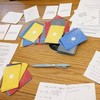

Our standard conversation decks cover the essentials, but every community is unique. The Deck Builder hands the creative power to you, allowing you to craft custom questions tailored to your specific group, theme, or occasion—turning your unique ideas into a playable game in seconds.
Quick Navigation
- Why Build a Custom Deck?
- 1. The Creation Workflow
- 2. Four Ways to Draft
- 3. Choose Your Mode
- 4. Refining & Organizing
- 5. Sharing Your Deck
- 6. Printing Cards
- 7. The Player Experience
Why Build a Custom Deck?
The standard decks are great, but sometimes you need something specific. The Deck Builder gives you the power to become a game designer.
-
Tailored Events: Create a unique game for a wedding, a "Best Friend Trivia" for a birthday, or specific topics for a team retreat.
-
Team Building & Meetings: Craft custom icebreakers for your next offsite or weekly sync. Use the AI's "Work Safe" filter to generate professional, engaging questions that build psychological safety without crossing boundaries.
-
Offline Privacy: Going camping? Use the "Direct QR" mode to create a game that works entirely offline with no data stored on any server.
-
Rapid Prototyping: Test out new conversation starters instantly without waiting for an official app update.
✨ Need Inspiration?
Not sure what to ask? You can browse our Standard Topic Catalog to see how we structure our deep questions. Feel free to copy your favorites (like questions from Adulthood or Authenticity) and remix them into your own custom deck!
Try It: From Draft to Phone
Draft questions (or let AI generate them), then test the gameplay on the simulator.

1. The Creation Workflow
Creating a game is a simple 3-step loop. You don't need an account or login.
Designing for an Event? 🎨 If you are creating a deck for a standard Curious Souls gathering, remember: use Lite questions for Round One (Icebreakers) and Deep questions for Round Two. See our Event Structure Guide for examples of each style.
Cross-Tool Integration: The Deck Builder isn't just for standalone games! If you jump to the Builder from a Live Board or your Collect · Reflect journal, any questions you draft or generate are automatically saved. When you return to the previous tool, your questions will be waiting in the Saved Drafts section, making it incredibly easy to selectively submit ideas to your group or log them privately.
2. Four Ways to Draft
You don't have to type everything by hand. We offer four powerful ways to populate your deck:
A. The AI Generator Popular
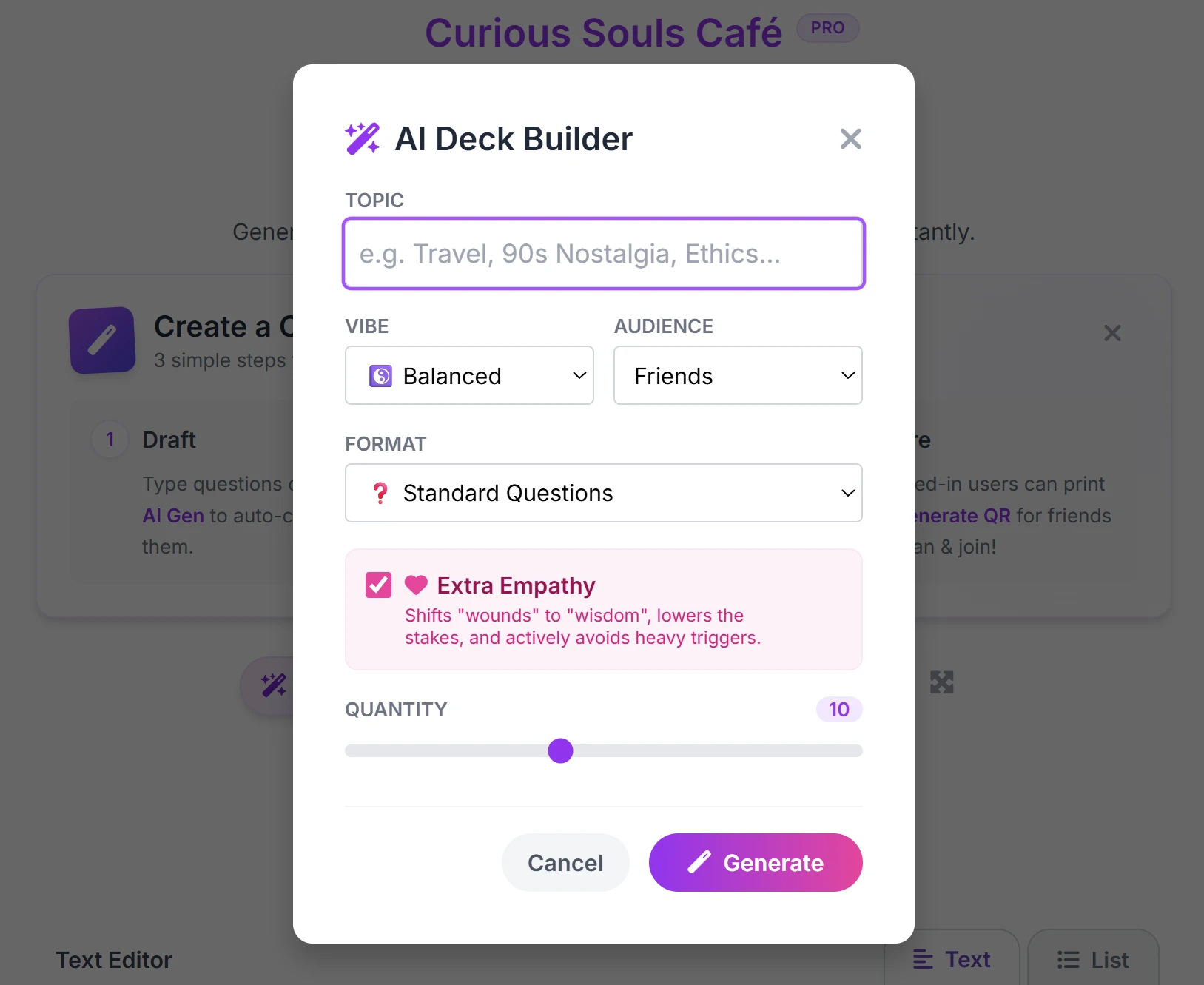
Stuck for ideas? Click the "AI Gen" button. Simply type a topic, or click one of our curated Quick Topic Pills (like "Childhood Nostalgia" or "Unwritten Rules of Life") to instantly cure blank-page syndrome and get questions perfectly tailored to the Curious Souls vibe.
- 🌍 Global Languages (Pro/Host Feature): Unlock the ability to translate questions in over 20 languages, including Spanish, French, Tagalog, Dutch, and Japanese!
- 🧠 Sticky Settings: Generating multiple decks? The app automatically remembers your preferred Vibe, Audience, and Format between sessions.
- ⚠️ Smart Limits: If you're building a deck for offline play (Direct mode), the generator will gently warn you if you try to generate more than 10 cards at once, keeping your QR code perfectly scannable.
Tiered Empathy Levels
To maximize psychological safety, the AI is locked to "Gentle" mode by default, ensuring questions shift focus from "wounds" to "wisdom," lower the stakes, and actively avoid heavy triggers.
Note: Pro users can unlock "Balanced" mode to allow for deeper vulnerability, and Hosts can unlock "Raw" mode for completely unfiltered generation.
B. Bulk Paste
Already have a list in Excel, Word, or ChatGPT? Simply paste your questions or import from a file. You can paste a raw list of text, and the builder will automatically split them into separate cards.
C. Manual Entry
For fine-tuning, simply type your question. You can drag and drop cards to reorder them or use the trash icon to delete specific ones.
D. The Curated Library & Pre-Made Decks
Don't want to start from scratch? We offer two ways to pull from our vault:
- Search the Library: Click the Library button next to "AI Gen" to open the slide-down drawer. You can filter by category, search by keyword, or even pull an exact question number. Click "Draw Prompt" to find a question, and "+ Add to Deck" to instantly append it to your list.
-
Import Full Core Decks (Pro/Host Feature): Click
"File" > "Import" > "Core Decks" in the main
toolbar to append entire collections at once. Unlock the full
library of 30+ curated decks with a Pro/Host passcode to instantly
populate your custom games.
Just want to play? If you don't need to make any custom edits, you can skip the Builder entirely! Expand any Core Deck and click the "Open in Player" shortcut at the bottom to launch it instantly in a new tab. - Load GitHub: Under "File" > "Import", click "Load URL" and use the prefilled link to pull community-sourced questions, Global Curiosities, directly from our open-source GitHub repository.
What are Sub-prompts (||)?
When importing Core Decks, you'll see a checkbox to
"Keep sub-prompts (|| format)". Some of our curated
questions include a built-in rephrase separated by a double-pipe
(||).
Keeping this checked enables a dynamic
Concise
button when you play the deck digitally, letting participants flip
between the deep context and a punchy summary on the fly!
Unchecking this box during import will permanently trim the text
down to just its first half.
3. Choose Your Mode (Important)
The builder has two distinct modes depending on how big your deck is.
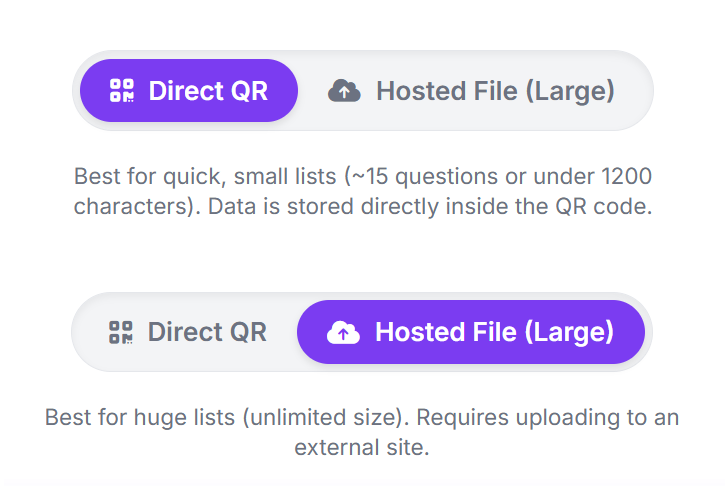
Option A: Direct Mode (Default)
Best for: Small decks (approx. 15 questions).
How it works: All the text data is compressed
inside the QR code image itself.
- Offline Friendly: Works without internet once loaded.
- Privacy: Data lives in the link, not on our servers.
- Soft Limit: If you exceed ~1600 characters, the QR code becomes too dense to scan.
- Privacy-First: Just like our main app, Direct mode creates a link that contains all the data. Nothing is stored on our servers, making it 100% private.
Option B: Hosted Mode (Power User)
Best for: Large decks (50+ questions) or permanent
lists.
How it works: You upload the text to a
cloud clipboard (like Pastes.io), and we generate a QR code that
points to that file. (How do I get the community passcode?)
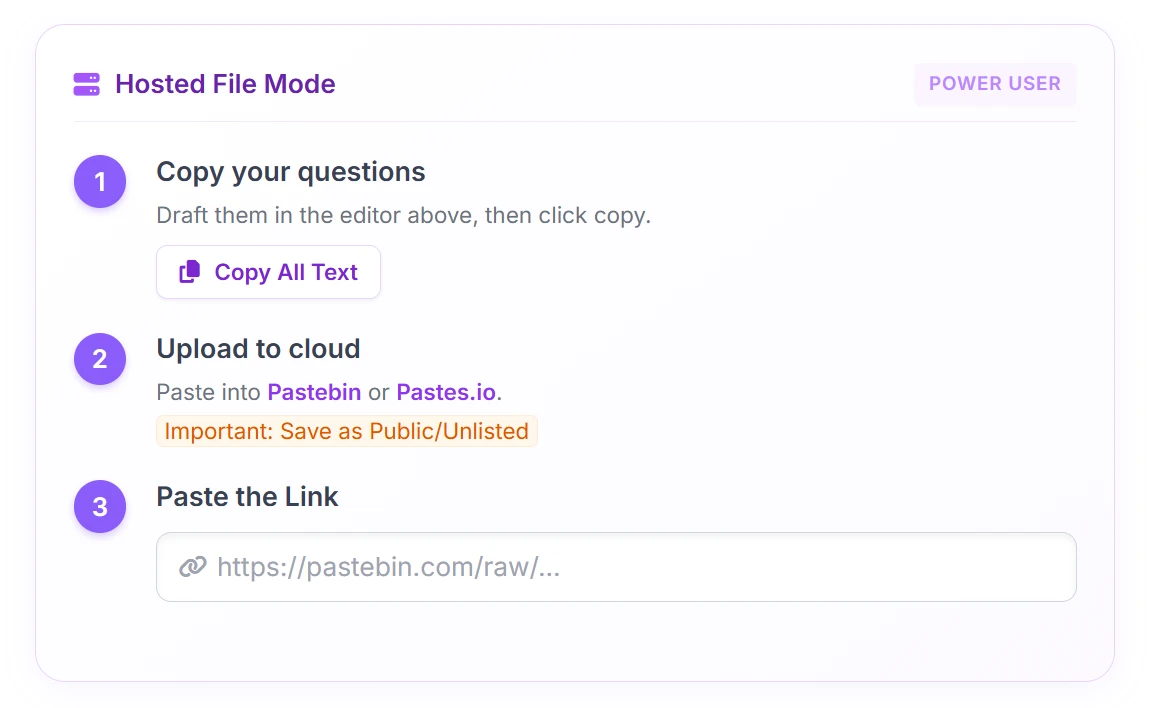
- Draft your questions in the editor.
- Click the "Copy All Text" button in the hosted panel.
- Go to Pastes.io (Recommended), Pastebin, or create a GitHub Gist (for advanced users).
- Paste your text and create a new paste (mark as "Unlisted" or "Public").
- Copy the link. Our app will automatically convert standard Pastes.io, Pastebin, and GitHub Gist links into the correct "Raw" format for you!
- Paste that link back into the "Paste Link" box in our builder.
🔒 Advanced Access
The following features are locked by default:
- Link & QR Generation: Packaging decks into shareable links and QR codes (to prevent spam). Free users can still play locally on their device!
- Premium Core Decks: Importing from our full library of 30+ curated decks (Starter decks are free).
- Hosted Mode: Access to third-party integrations for massive custom decks.
- AI-Generated Actions: Generate Action Prompts with AI.
- Advanced AI Controls: Language translation and tiered Empathy Levels (Balanced / Raw).
How to Unlock: Simply click on any locked feature (like the "Hosted" toggle). A prompt will appear asking for your passcode.
4. Refining & Organizing
Use the toolbar buttons to organize your questions. Note that on smaller screens, some options might be grouped under the "Import" menu.
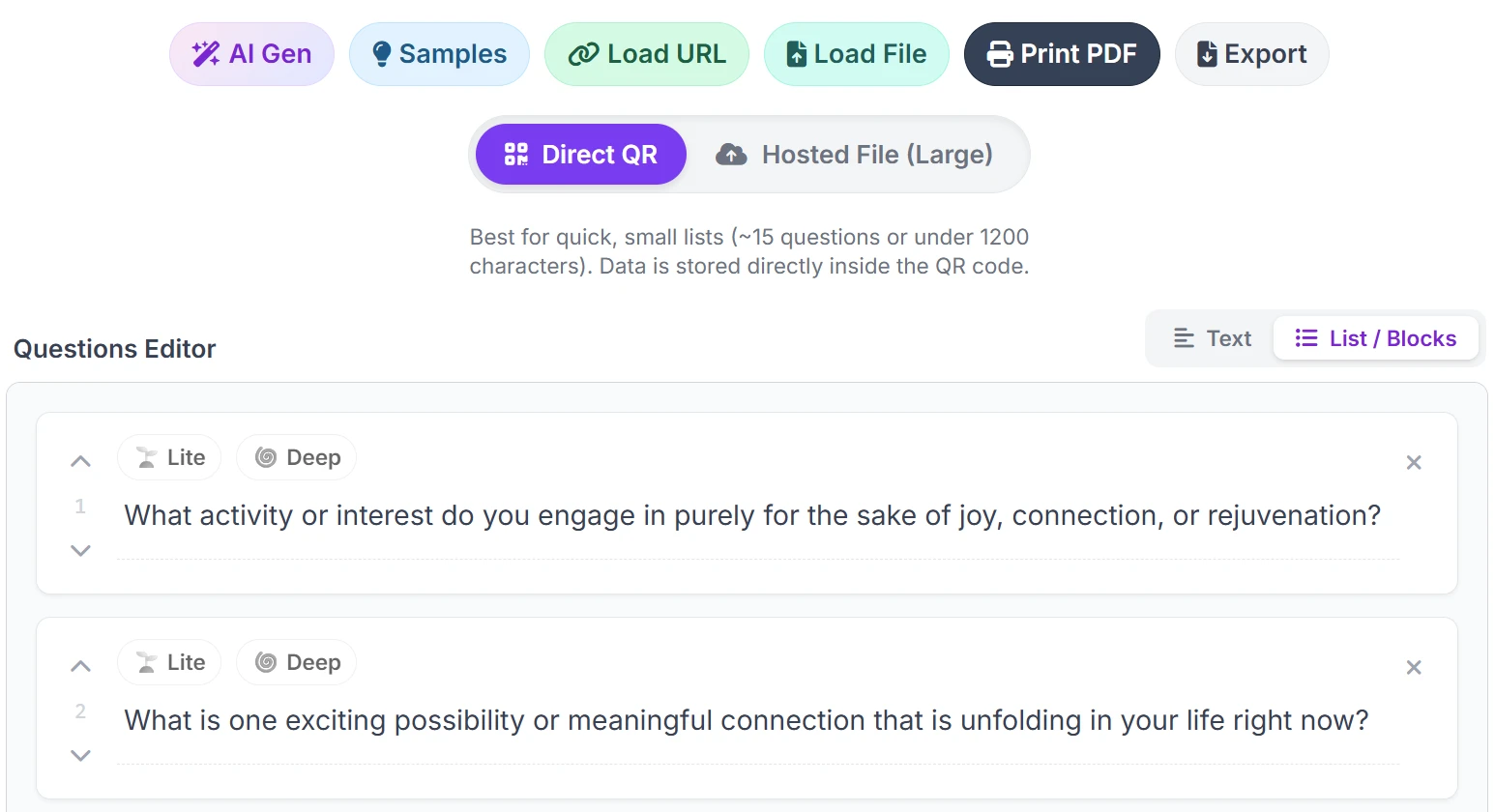
Add Smart Tags (Lite, Deep, Action)
You will see buttons for 🌱 Lite, 🌀 Deep, and ⚡ Action in the toolbar. Using these adds a special prefix to your question.
Advanced: Using [Sub-Categories]
If you want to group specific questions together (like topics for a trivia night or destinations for a travel deck), you can use Sub-Categories to unlock powerful sorting and printing features.
- The Syntax Rule: Simply type your category inside brackets at the very end of your question text. For example: "What is your favorite local dish? [Food]"
- The Print Magic: When you print your cards, the app automatically detects these brackets. You can use the new Sub-Categories dropdown in the Print Settings to neatly extract them and use them as the card's main Title, append them to the Footer, or completely replace the default footer branding for a minimalist look.
- The Digital Magic: If you share your deck digitally, the player app will automatically detect these tags and build beautiful, clickable pill filters at the top of the screen. Players can even cross-filter (e.g., selecting "Love" AND "🌀 Deep")!
[Routines]) so both the PDF Printer and the Digital
Player can automatically generate beautiful interactive filter pills
for your players.
Reorder with List View
Need to change the flow? Switch the toggle at the top right from "Text" to "List / Blocks". This view lets you:
- Drag and Drop (or use up/down arrows) to reorder specific cards.
- Delete specific duplicates easily.
Remix Cards with AI
Have a question that is *almost* perfect but needs a different vibe? On the Remix Cards (List) tab, you can use AI to improve existing questions directly in the app. Just click the magic wand icon () next to any card to shift its tone, change its format, or adjust its depth. You can even select multiple cards and click Bulk Remix at the bottom of the screen!
Randomize with Shuffle
If you've mixed multiple lists together (e.g., some Samples, some Global Curiosities, and some AI generations), you can click the Shuffle button in the Text Editor toolbar to instantly randomize the order of your entire deck.
Saving to Home
Want to keep your custom deck for later? Click "File" > "Save to Home" (the yellow star). Your deck will instantly appear on the Curious Souls Cafe home screen so you can launch it anytime. You can also load it back into the Builder later via "File" > "Saved Decks".
Backing Up (Important!)
Your drafts and saved decks are stored in your browser's local memory. To keep your work safe forever (or to move it to another computer or clear your cache), click "File" > "Export File" to download a backup.
-
This downloads a simple
.txtfile to your computer. - You can reload it later using "File" > "Load File".
5. Sharing Your Deck (Host Feature)
To protect our platform from automated spam, generating custom shareable links and QR codes is reserved for official Hosts and Pro users.
Playing for Free?
You don't need a link to play! Free users can draft their questions, then simply tap a card to open the full-screen Focus Mode. You can easily pass the device around or read the questions aloud to your group.
Once unlocked with a passcode, clicking the "Share via QR" button generates:
- A QR Code: Perfect for presenting on a screen. Friends can scan it to open your deck instantly on their own devices.
- A Magic Link: Send this link via WhatsApp, Slack, or email. Anyone with the link has the full game.
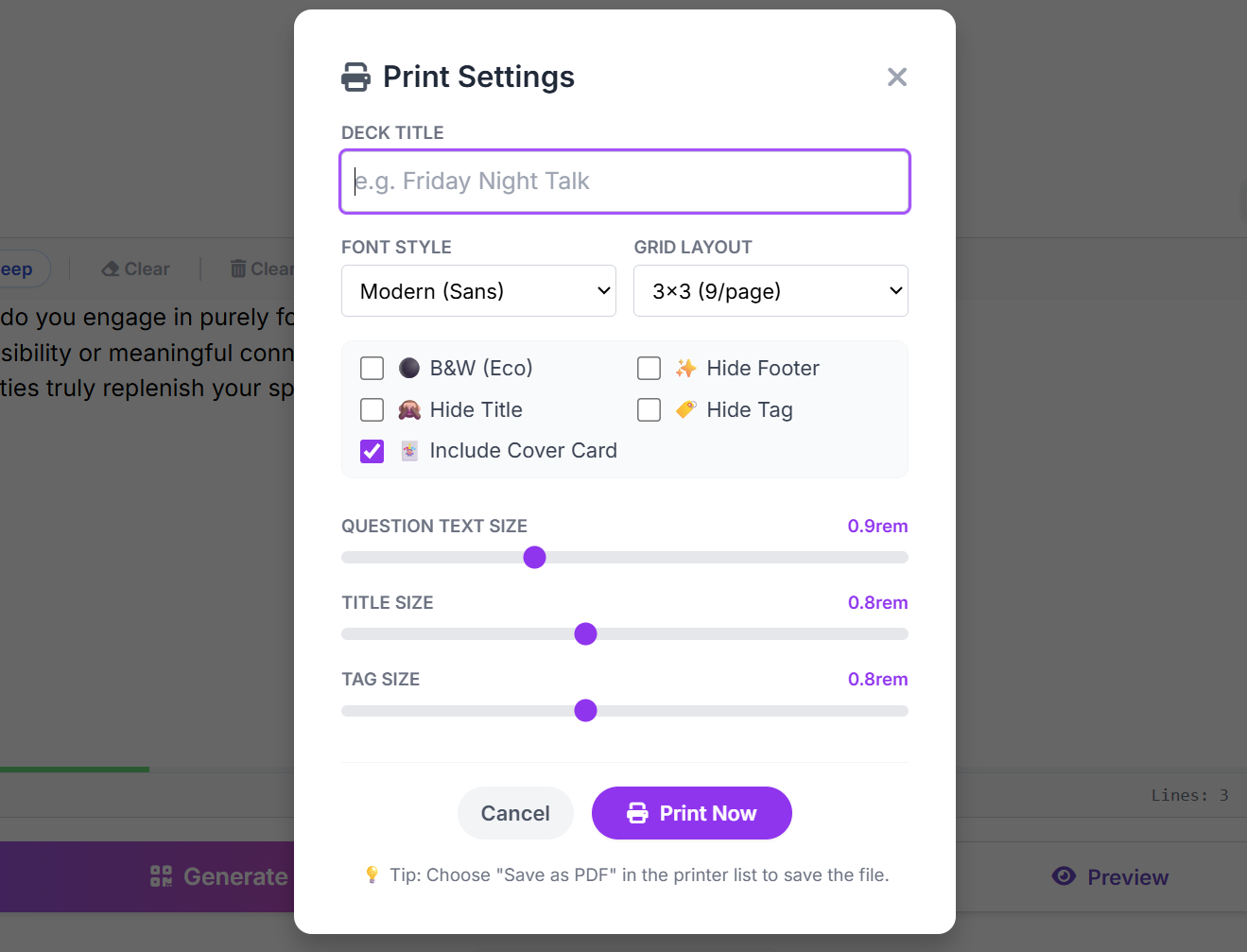
6. Printing Cards
Prefer an analog experience? We have a built-in print layout perfect for physical workshops.
- Click "File" > "Print / PDF" in the main toolbar.
- A print-friendly view will open, arranging your questions into a grid (3x3 or 2x4).
- Eco Mode: Toggle this to save ink (black & white).
- Custom Branding: Uncheck "Hide Footer" and type your own text (e.g., "Team Building 2024") to appear at the bottom of every card.
7. The Player Experience
Once you've shared your deck, participants unlock a suite of premium features to enhance their conversations within the digital player:
Dynamic Navigation & Filters
- Depth Slider: A dual-thumb slider lets users easily filter the current view between 🌱 Lite, Medium, and 🌀 Deep questions.
- Random vs. Sequential: Players can toggle between drawing random cards or reading sequentially through the deck.
-
Advanced Search: Players can search for specific
keywords or jump to exact card numbers (e.g., typing
10-15or5, 8).
Saved Items & Facilitator Notes
Tapping the star () on any card saves it to the bottom "Saved" section. Enabling Notes reveals a text editor where users can log personal reflections. Hosts and Pros gain access to instant dropdown frameworks (like the S.T.A.R. Method or ORID Debrief) directly inside the notes module!
Digital Souvenirs (Create Graphic)
Found a prompt you absolutely love? Players can select a card, tap the floating share button, and choose Create Graphic. The app instantly generates a beautiful, Instagram-ready 3D flashcard graphic that can be downloaded or shared natively.
Live Board Integration
The Deck Builder and Digital Player are seamlessly integrated with our ecosystem. If you are participating in a live facilitated gathering using our Live Board, the app will automatically stay synced with the event behind the scenes:
- Live Connection Indicator: A purple banner will appear at the top of your screen showing the active room name and current topic.
- Focus Mode: When a host broadcasts a new topic or question, a "Focus Mode" overlay will automatically appear over the screen to ensure everyone stays on the same page. You can easily dismiss this overlay to return to your cards.
- Seamless Disconnect: You can disconnect from the live broadcast at any time by tapping the "X" on the connection banner.
Ready to create? Open the Deck Builder and start creating your own conversation experience today.
Launch Deck Builder🛠️ Explore Other Tools
Enhance your gathering with our other facilitation tools.
Collect · Reflect
Your hub to curate questions, organize them with custom tags, and journal in Zen Mode, plus a professional Session Log for facilitators.
Curious Souls Cafe aims to foster a collaborative and reflective environment where dialogue and shared experience create meaning and build connections. The methods discussed here are flexible and can be adjusted to fit your group's needs.