Our standard conversation decks cover the essentials, but every community is unique. The Deck Builder hands the creative power to you, allowing you to craft custom questions tailored to your specific group, theme, or occasion—turning your unique ideas into a playable game in seconds.
Quick Navigation
- Why Build a Custom Deck?
- 1. The Creation Workflow
- 2. Three Ways to Draft
- 3. Choose Your Mode
- 4. Refining & Organizing
- 5. Sharing Your Deck
- 6. Printing Cards
Why Build a Custom Deck?
The standard decks are great, but sometimes you need something specific. The Deck Builder gives you the power to become a game designer.
-
Tailored Events: Create a unique game for a wedding, a "Best Friend Trivia" for a birthday, or specific topics for a team retreat.
-
Offline Privacy: Going camping? Use the "Direct QR" mode to create a game that works entirely offline with no data stored on any server.
-
Rapid Prototyping: Test out new conversation starters instantly without waiting for an official app update.
✨ Need Inspiration?
Not sure what to ask? You can browse our Standard Topic Catalog to see how we structure our deep questions. Feel free to copy your favorites (like questions from Adulthood or Authenticity) and remix them into your own custom deck!
Try It: From Draft to Phone
Draft questions (or let AI generate them), then test the gameplay on the simulator.

1. The Creation Workflow
Creating a game is a simple 3-step loop. You don't need an account or login.
Designing for an Event? 🎨 If you are creating a deck for a standard Curious Souls gathering, remember: use Lite questions for Round One (Icebreakers) and Deep questions for Round Two. See our Event Structure Guide for examples of each style.
2. Three Ways to Draft
You don't have to type everything by hand. We offer three powerful ways to populate your deck:
A. The AI Generator Popular
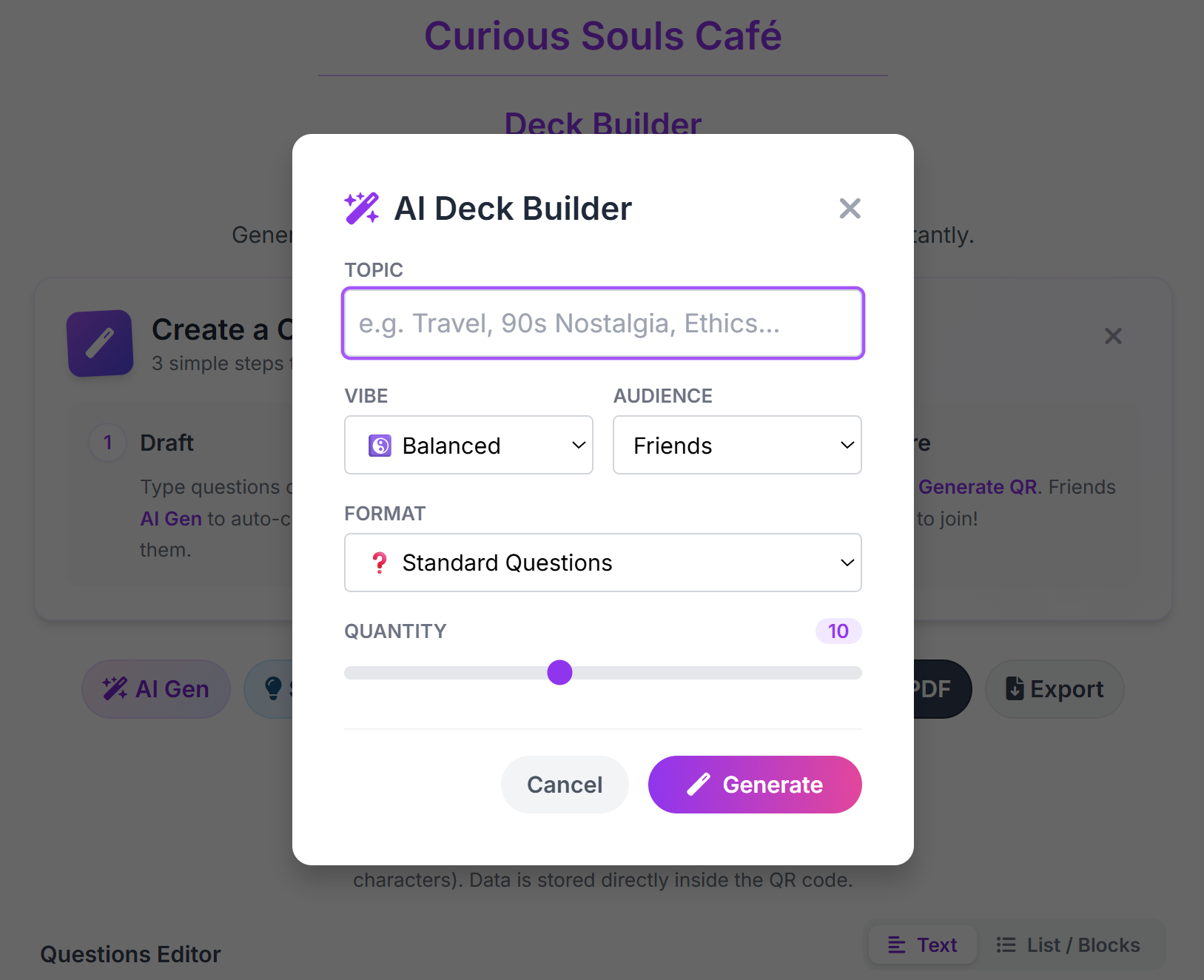
Stuck for ideas? Click the "AI Gen" button. Simply type a topic (e.g., "Philosophy," "Childhood Memories," "Future Hopes"), and our AI will instantly generate questions tailored to that vibe.
B. Bulk Paste
Already have a list in Excel, Word, or ChatGPT? Simply paste your questions or import from a file. You can paste a raw list of text, and the builder will automatically split them into separate cards.
C. Manual Entry
For fine-tuning, simply type your question. You can drag and drop cards to reorder them or use the trash icon to delete specific ones.
3. Choose Your Mode (Important)
The builder has two distinct modes depending on how big your deck is.
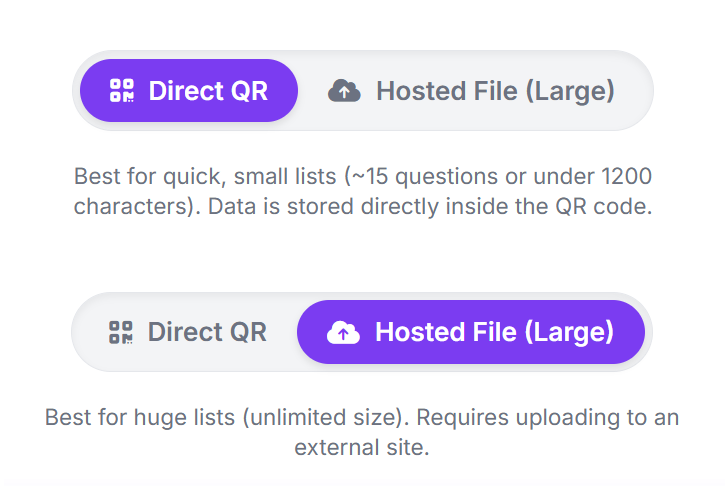
Option A: Direct QR Mode (Default)
Best for: Small decks (approx. 15 questions).
How it works: All the text data is compressed
inside the QR code image itself.
- Offline Friendly: Works without internet once loaded.
- Privacy: Data lives in the link, not on our servers.
- Limit: If you exceed ~1200 characters, the QR code becomes too dense to scan.
- Privacy-First: Just like our main app, Direct QR mode creates a link that contains all the data. Nothing is stored on our servers, making it 100% private.
Option B: Hosted File Mode (Power User)
Best for: Large decks (50+ questions) or permanent
lists.
How it works: You upload the text to a
cloud clipboard (like Pastebin), and we generate a QR code that
points to that file.
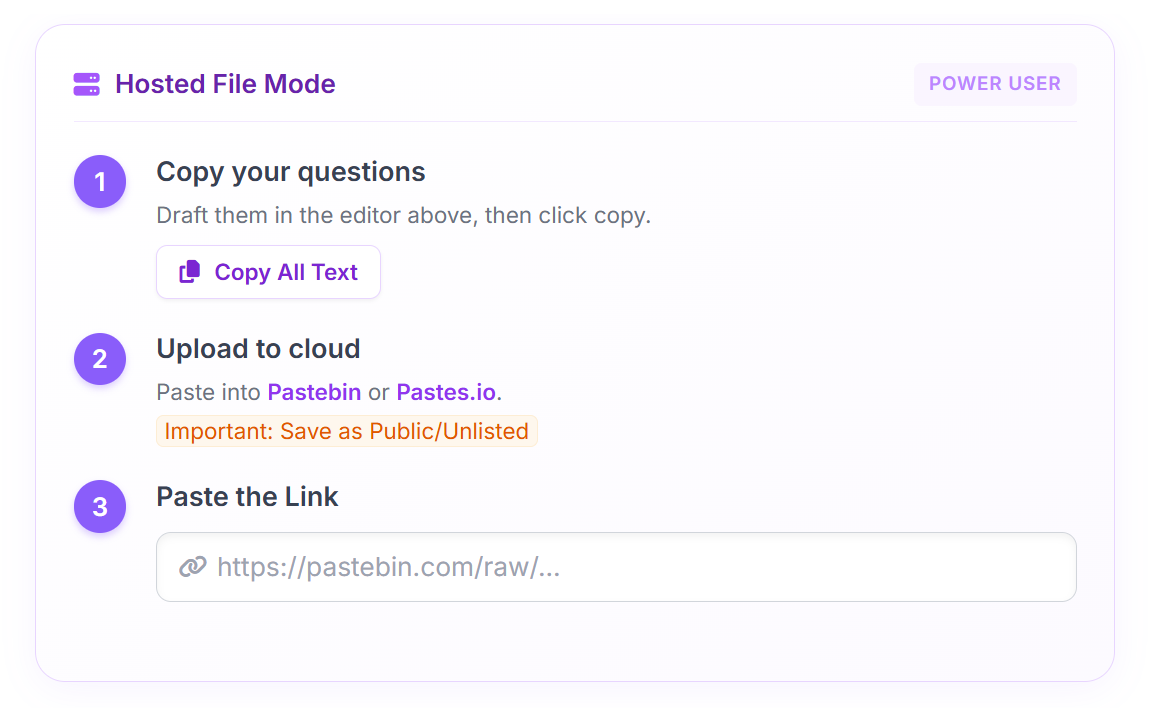
- Draft your questions in the editor.
- Click the "Copy All Text" button in the hosted panel.
- Go to Pastebin.com, Pastes.io or any supported third-party web platform.
- Paste your text and create a new paste (mark as "Unlisted" or "Public").
-
Optional: Copy the "Raw" link (e.g., ends in
/raw/abc1234) or just the regular link format (e.g., ends in/abc1234) which is now also supported but only for Pastebin and Pastes.io. - Paste that link back into the "Paste Link" box in our builder.
🔒 Advanced Access
The following distribution features are locked by default:
- Hosted Mode: Using cloud storage.
- QR Generation: Creating shareable links.
- Draft Sharing: Sharing directly from the "Preview" screen is restricted.
- Print Export: Generating PDF files for physical printing.
How to Unlock: Simply click on any locked feature (like the "Hosted File" toggle or the "Print PDF" button). A prompt will appear asking for your passcode.
4. Refining & Organizing
Use the toolbar buttons to organize your questions. Note that on smaller screens, some options might be grouped under the "Import" menu.
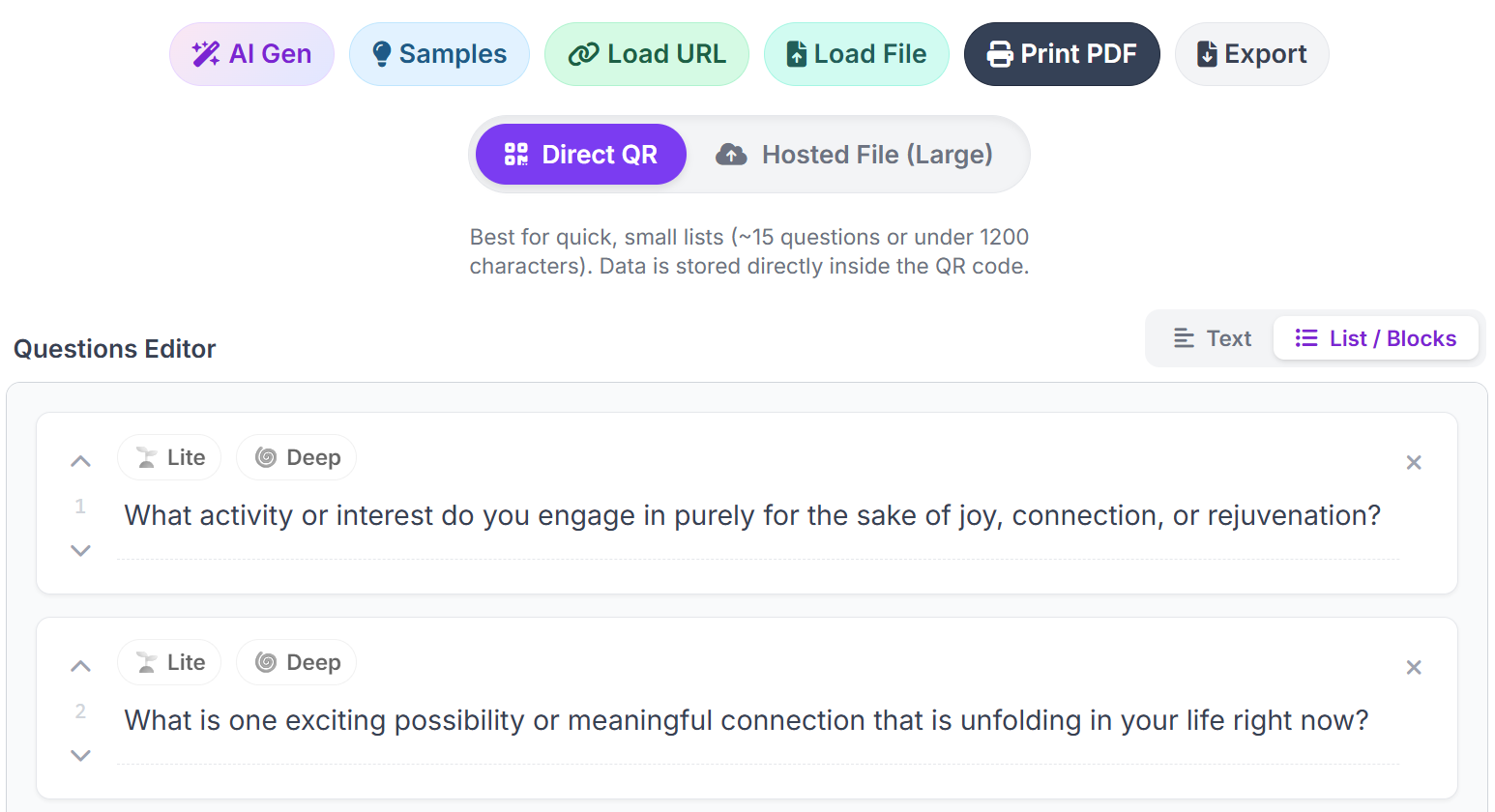
Add Smart Tags (Lite vs. Deep)
You will see buttons for 🌱 Lite and 🌀 Deep in the toolbar. Using these adds a special prefix to your question.
Reorder with List View
Need to change the flow? Switch the toggle at the top right from "Text" to "List / Blocks". This view lets you:
- Drag and Drop (or use up/down arrows) to reorder specific cards.
- Delete specific duplicates easily.
Backing Up (Important!)
Your draft is saved in your browser's temporary storage. To keep your work safe forever (or to move it to another computer), click the "Export" button.
-
This downloads a simple
.txtfile to your computer. - You can reload it later using the "Load File" button.
5. Sharing Your Deck
Once your deck is ready, click the "Generate QR" (or "QR from URL") button at the bottom.
This generates:
- A QR Code: Perfect for presenting on a screen. Friends can scan it to open your deck instantly.
- A Magic Link: Send this link via WhatsApp or email. Anyone with the link has the full game.
6. Printing Cards
Prefer an analog experience? We have a built-in print layout perfect for physical workshops.
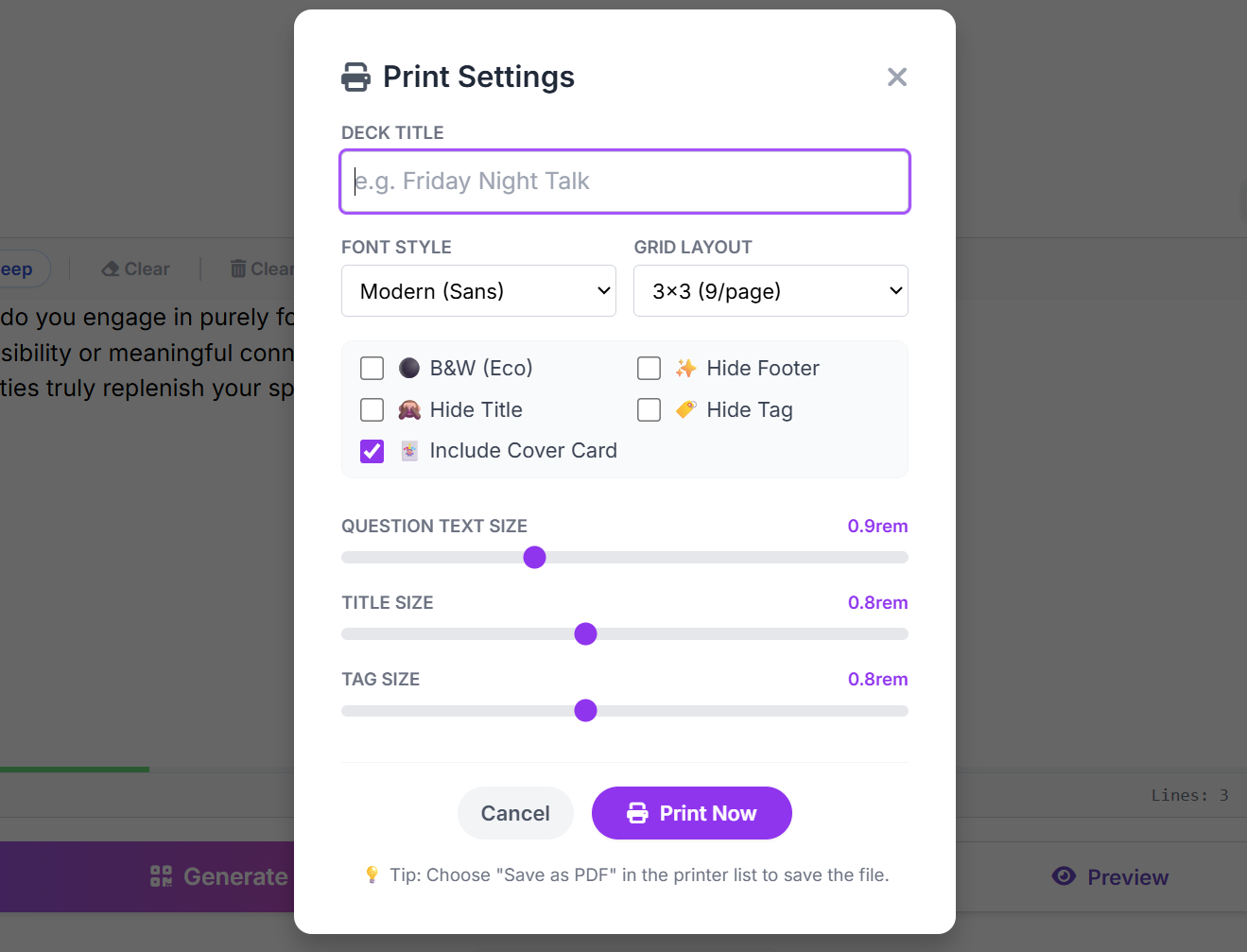
- Click the "Export > Print / PDF" button in the main toolbar.
- A print-friendly view will open, arranging your questions into a grid (3x3 or 2x4).
- Eco Mode: Toggle this to save ink (black & white).
- Custom Branding (Facilitator Only): Unlock the app to uncheck "Hide Footer". You can then type your own text (e.g., "Team Building 2024") to appear at the bottom of every card.
Ready to create? Open the Deck Builder and start creating your own conversation experience today.
Launch Deck Builder🛠️ Explore Other Tools
Enhance your gathering with our other facilitation tools.
Collect · Reflect
Your hub to manage questions and journal in Reflection Mode, plus a professional Session Log equipped with tools for facilitator field notes.
Curious Souls Café aims to foster a collaborative and reflective environment where dialogue and shared experience create meaning and build connections. The methods discussed here are flexible and can be adjusted to fit your group's needs.