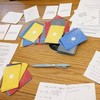
This tool serves two purposes. For the Individual, it is a private space to collect questions and journal deeply. For the Facilitator, it is a command center to build agendas and log group dynamics in real-time.
Quick Navigation
- 1. How it Works (Curating)
- 2. Interactive Demo (Personal & Facilitator)
- 3. Features: Personal Reflection
- 4. Features: Session Log
- 5. Privacy, Data & Backups
1. How it Works (Curating)
Everything starts with finding the right question. As you explore our Topic Decks, you will find prompts that resonate—either for yourself or for a group you are leading.
Tap the Star icon on any card to save it. Once collected, you can open the Dashboard to engage in two different modes.
2. Interactive Demo
Try the interface below. Switch the toggle to see how the tool adapts between personal reflection and professional logging.
What is a mistake you made that you are now grateful for?
3. Features: Personal Reflection
The "Reflect" tab helps you turn a list of questions into a personal journal. Writing on a screen can be distracting, so Zen Mode opens a full-screen environment.
4. Features: Session Log
Sometimes you have different needs than personal solo journaling. By switching the dashboard tab to "Session Log", the tool transforms into a professional command center. (Note: This feature is fully unlocked for both authenticated Power Users and Facilitators).
Building the Agenda
Your "Collected Items" essentially act as your run-of-show. Before the session, Star the questions you intend to ask. During the session, use the Expand button to show questions full-screen to your audience.
Field Notes & Logger
The Session Log uses the same distraction-free interface as Zen Mode, but the tools are swapped for professional use:
- Debrief Frameworks: Instead of personal reflection tools, you get frameworks like ORID (Objective, Reflective, Interpretive, Decisional) or The 4 Fs (Facts, Feelings, Findings, Future) to quickly structure your notes.
- Facilitator Cues: Get prompts to check the room, such as "Who is dominating the conversation?" or "Is the silence awkward or reflective?"
- Room Dynamics: Quickly tag the energy level (e.g., "Heated Debate", "Deep Silence", "High Energy") with a timestamp.
5. Privacy, Data & Backups
Whether you are writing personal secrets or confidential client notes, data privacy is paramount.
Curious Souls Café operates on a "Local First" philosophy. When you save a question or write a log entry:
- It is saved only on your device (in your browser's Local Storage).
- We (the developers) cannot read, see, or sell your entries.
- Risk: If you clear your browser history/cache, or if you switch from your phone to your laptop, your data will not be there.
How to Backup & Restore
Because your data lives on your device, you are responsible for moving it. We provide tools for this found in the "Labs" or "Utility" section of the dashboard.
Option A: Print / Report
Use the "Export" or "Report" button to generate a clean HTML view of your collection. You can print this to PDF to create a physical journal archive (Personal) or a session report (Facilitator).
Option B: Transfer Data (JSON)
-
Click "Backup" to download a
.jsonfile containing all your collections and notes. - Send that file to your new device (or save it safely).
- On a new device, click "Restore" and select the file to load your data.
-
Click "Backup" to download a
.jsonfile containing all your collections and notes. - Send that file to your new device (or save it safely).
- On a new device, click "Restore" and select the file to load your data.
Your inner life—and your professional practice—deserve a safe space. Start curating your collection today.
Open Collection Dashboard🛠️ Explore Other Tools
Enhance your gathering with our other facilitation tools.
Curious Souls Café aims to foster a collaborative and reflective environment where dialogue and shared experience create meaning and build connections. The methods discussed here are flexible and can be adjusted to fit your group's needs.