In traditional group discussions, the loudest voices often dominate. The Live Board democratizes the room during our 'Harvesting' rounds by allowing participants to submit and vote on questions anonymously. This ensures the group explores the topics that truly matter to everyone, not just the extroverts.
Quick Navigation
- Why Use the Live Board?
- 1. The Session Workflow (How to Play)
- 2. Joining & Submitting
- 3. Interaction Tools
- 4. Facilitator Guide
- 5. Viewing Past Sessions
- 6. Troubleshooting & Tips
Why Use the Live Board?
Traditional "Raise your hand to speak" sessions often favor the loudest voices. The Live Board changes the dynamic entirely.
-
Democratize the Room: Everyone can submit questions anonymously. This encourages introverts and non-native speakers to participate without anxiety.
-
Curate the Best Topics: By voting on questions, the group collectively decides what is most relevant to discuss, ensuring time isn't wasted on niche tangents.
-
Visual Focus: Projecting the question on a screen keeps everyone focused on the topic at hand, reducing distractions.
💡 Tool Comparison: The Deck Builder is best for prepared topics (when you have a set list), while the Live Board is best for crowdsourcing questions live from your participants on the fly.
1. The Session Workflow (How to Play)
A typical "Round Two" discussion follows this simple adaptable 4-step loop (Ask, Submit, Vote, Discuss):
Try the Mechanics: Submit & Vote
Experience how questions appear anonymously. (In this demo, you can test the voting buttons, but in a real session, these are visible only to the Facilitator).
What is a challenge that made you stronger recently?
If you could send a message to your younger self, what would you say?
What is Round Two? 🤔 The Live Board is specifically designed for a specific section of our event, usually the second round. Curious about how we transition between rounds or different formats? Check out our full Event Structure Guide.
🎓 Great Themes for Live Sessions
Struggling with what to ask the audience? Here are some themes from our catalog that work great as broad prompts:
- Resilience: "What is a challenge that made you stronger recently?"
- Transitions: "What is a chapter in your life you are trying to close or open?"
- True Wealth: "Aside from money, what makes you feel truly rich?"
2. Joining & Submitting
The Live Board is designed to be "walk-up simple." You do not need to create an account or login to use it.
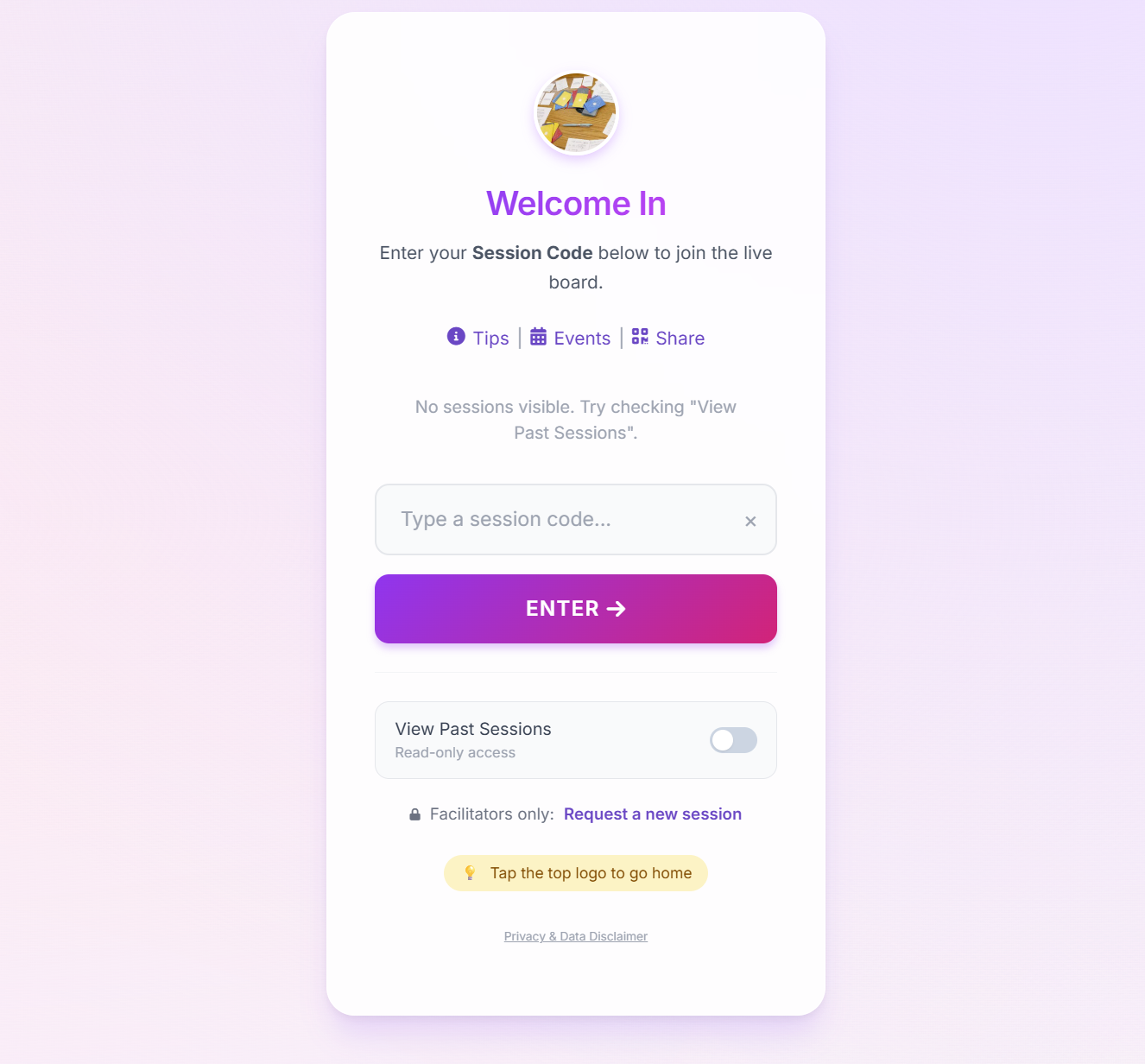
Step 1: Enter the Session Code
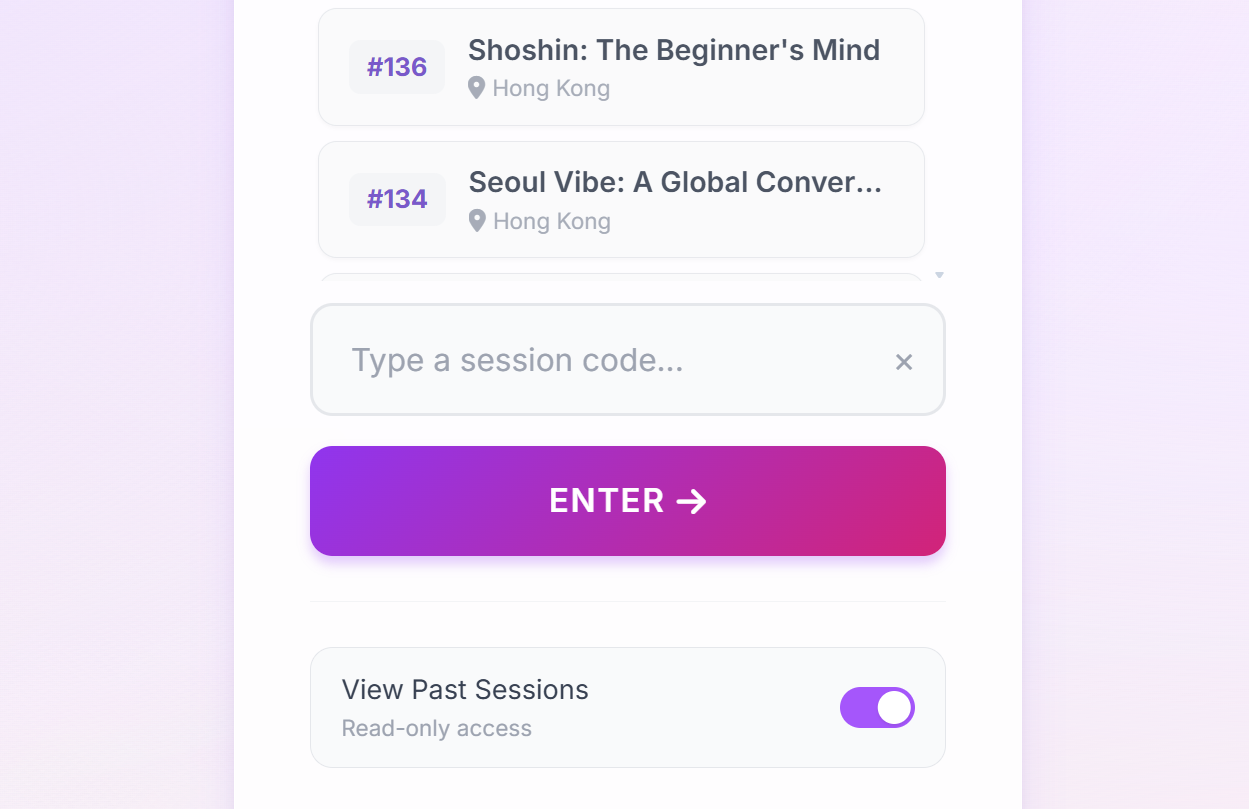
When you arrive at the landing page, you will see a text box asking for a Session Code. This code is provided by your host (e.g., "132").
Step 2: Write a Question
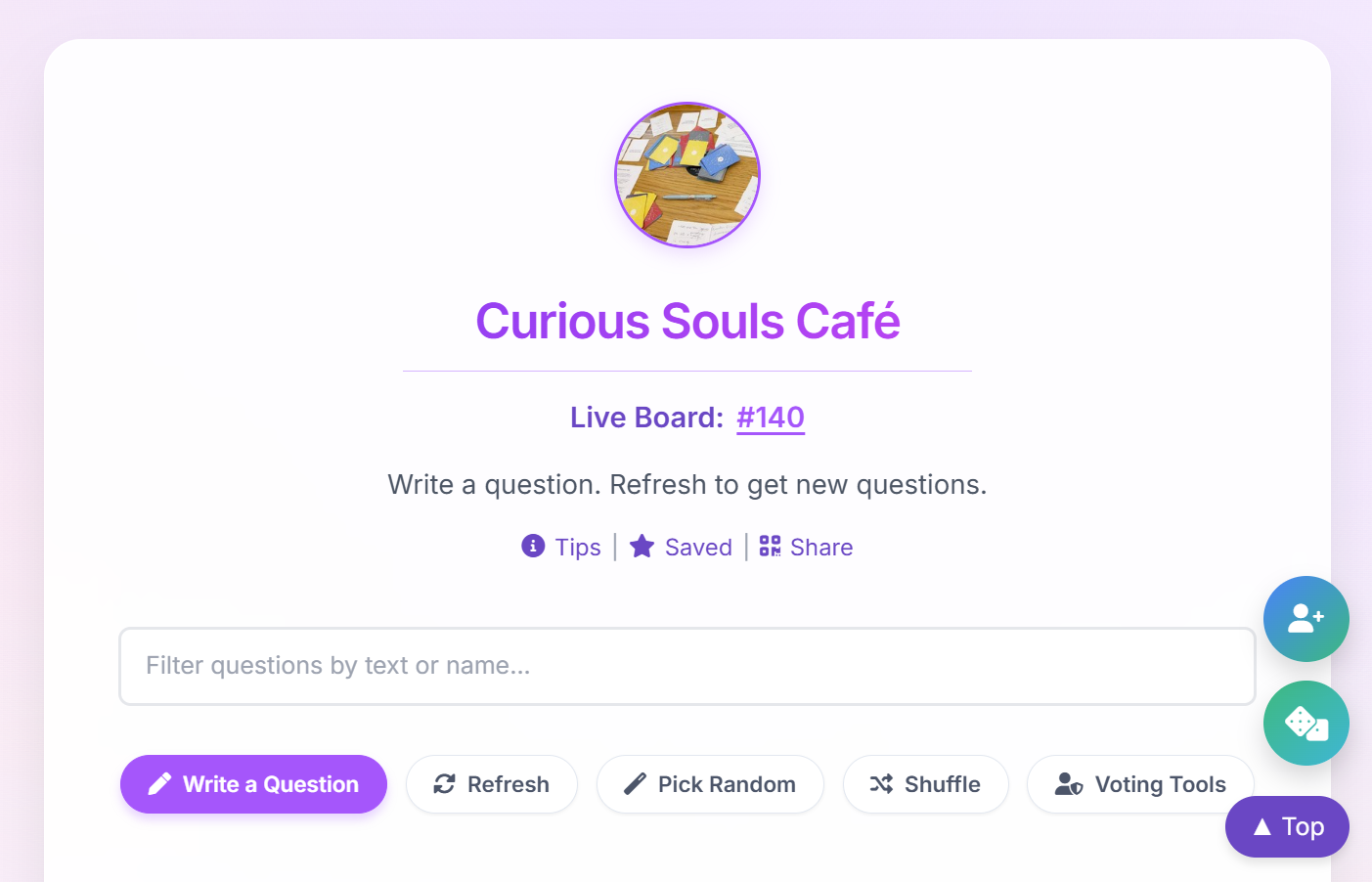
Once inside, you will see the "Write a Question" button at the top. Tapping this opens a form where you can submit your own question to the board.
- It's Anonymous: Your name is not attached to the question unless you write it in the text body.
- Real-time: Once submitted and returned to the live board, the board will automatically refresh (or you can manually refresh) to show your card to everyone in the room.
3. Interaction Tools
The board isn't just for reading; it's an interactive tool to help you focus and learn.
Highlighting
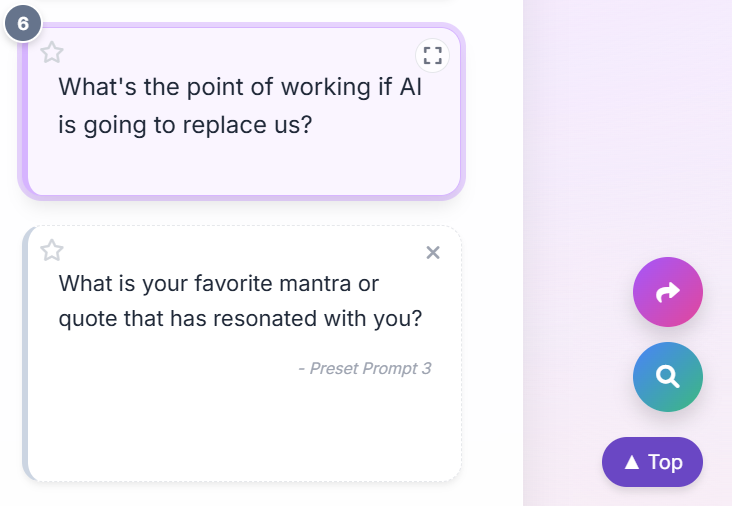
Tap any card to Highlight it. This turns the card purple and reveals additional tools.
Focus Mode
For zero distractions, tap the Expand icon (top right of a selected card). This opens the question in a beautiful, full-screen Focus Mode—perfect for displaying on a projector or reading aloud.
External Tools (Search & Translate)
When a card is highlighted, floating buttons appear in the bottom right corner of your screen:
- Search / Translate: Opens a menu to instantly search the question text on Google, Bing, DuckDuckGo or translate it using DeepL. This is helpful for language learners or when a question references a specific concept.
- Copy & Share: Quickly copies the text to your clipboard. Note: Tapping this opens a menu where you can also choose to "Share Item Link" (send a direct link to this card) or "Flag This" to send feedback.
Saving Favorites & Notes
Found a question you love? Tap the Star icon on the card.
- This moves the question to your Saved Items list at the bottom of the page.
- You can toggle "Recent" to see only questions saved during this session.
-
For Facilitators
The "Notes" toggle allows hosts to write private reflections or facilitation cues directly under the saved question. This feature is secured by a lock and requires your passcode to access.
Exporting Your Saves
Since data is stored in your browser, it will be lost if you clear your cache. To keep your favorite questions:
- Open the "Saved Items" tray.
- Scroll to the bottom and tap "Manage All".
- Use the "Export" or "Print" buttons to save a copy of your collection.
4. Facilitator Guide
Hosting an event? The board has hidden superpowers just for you.
Creating a Session
Need a new session code for your event? On the main login screen of the Live Board, facilitators can find a hidden "Request a session" link (located below the input box).
The Dice Roller
Need to pick someone to speak? Tap the floating Dice icon (bottom right) to open a simple dice tool. It allows you to roll for numbers (e.g., "Participant #5") or other randomizers.
Toggle: Facilitator Tools
Tap the "Unlock Tools" button (marked with a lock icon) in the control bar and enter your passcode. This unlocks admin features and transforms the board:
- Up/Down Votes: Vote buttons (+ / -) appear on every card. Use this to let the room democratically decide which topics to discuss next.
- Hide Button: A small "X" appears on cards, allowing you to hide duplicates or inappropriate entries from the main view.
Toggle: Shuffle & Number
Each participant-submitted question has a permanent Number Badge assigned to it. Tap the "Shuffle" button to randomize the order of questions but only for your view, not for other participants.
Why permanent number badges by default? Instead of reading a long question aloud, you can simply say: "Let's do Question #5 next."
Pick Random
If the group is indecisive, use the "Pick Random" button. The app will scroll through the available cards and highlight one for you, adding a fun element of chance.
5. Viewing Past Sessions
On the main joining screen, you will see a toggle for "View Past Sessions".
Enabling this reveals a list of previous event codes. You can tap any of these to enter "Read-Only Mode." This is a great way to browse hundreds of deep questions from our global community archives for inspiration.
6. Pro Tips & Troubleshooting
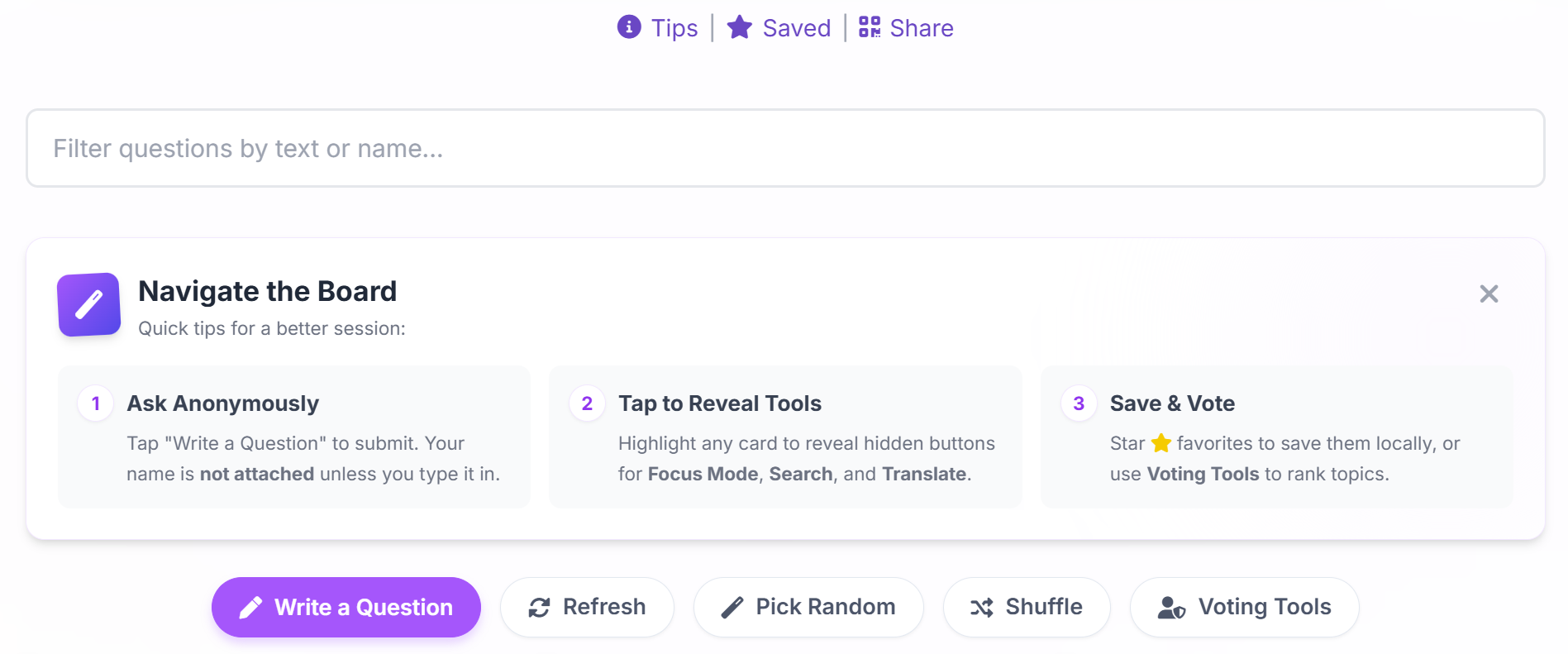
Use the control bar at the top of your screen to manage your session.
Connection Issues (Firewall)
If the page loads but says "Connection Issue" or stays stuck on "Loading...", you may be on a network that blocks Google Services (like some corporate offices).
- The Live Board relies on Google Sheets/Forms to function.
- Fix: Try switching to mobile data (4G/5G) or using another network.
Manual Refresh
"My question isn't showing up!"
While the board updates automatically, spotty internet can sometimes cause delays. Tap the Refresh button in the control bar to force a quick update.
In-App Guide
Forgot these rules mid-game? Tap the Tips button to open a quick "Cheat Sheet" without leaving the session.
Ready to try it out? Launch the Live Board and enter a demo code (try looking for past sessions!) to see it in action.
Launch Live Board🛠️ Explore Other Tools
Enhance your gathering with our other facilitation tools.
Collect · Reflect
Your hub to manage questions and journal in Reflection Mode, plus a professional Session Log equipped with tools for facilitator field notes.
Curious Souls Café aims to foster a collaborative and reflective environment where dialogue and shared experience create meaning and build connections. The methods discussed here are flexible and can be adjusted to fit your group's needs.